|
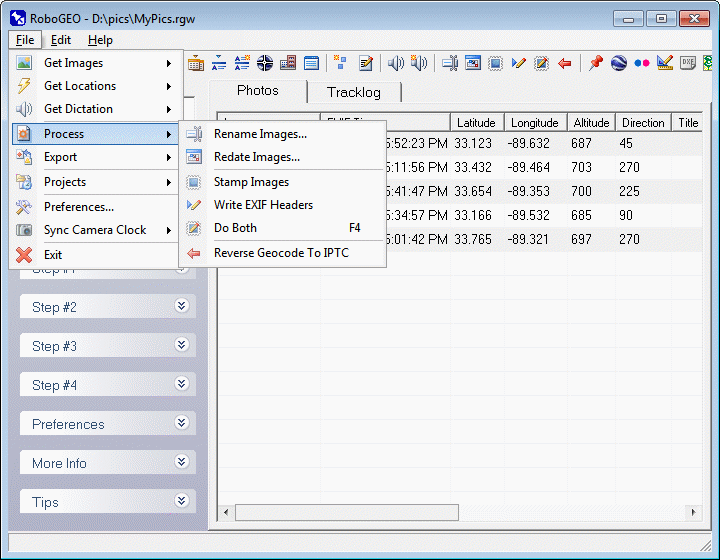
Once you've selected valid images and have geocoded them, they can be processed.
You don't have to process the images if all you want to do is create a web page that uses Google Maps, export a KML or KMZ file to Google Earth, upload to Flickr, export a shapefile, export a DXF file, export to MapPoint or export a GPX file.
You have 4 options for processing the image's latitude, longitude, altitude, direction and time information:
1. Stamp the actual images.
2. Write the data to the EXIF.
3. Stamp the image and write to the at once.
4. Reverse geocode the images.
To redate images, all you have to do is select them, i.e. they don't have to be geocoded first.
Unless you've changed the program option for doing so, the images will first be copied to a new folder that you choose and then processed from there.
All of the images must be geocoded before you can process them with location data. If some are not, you can either delete them from the list or manually assign the latitude, longitude, and altitude information. You can quickly access these options by double clicking on the image or by typing directly into the grid. Optionally, you can use the 'Edit' pull down menu. If ungeoreferenced images exist when you select this option, you'll be prompted whether to automatically remove them before proceeding.
You can automate any of these processes by using the appropriate command line parameter(s).
Select this option to modify the disk file date of the currently selected images. Note, this is different from changing the EXIF time. When you redate the images, you're changing the actual dates of the disk files.
You can specify a specific date or redate the images per the EXIF timestamp. If you're redating the images to match the EXIF timestamp and if a timestamp doesn't exist, the image will be skipped and not processed.
If you simply want to preserve the image disk dates when they are processed, set the PreserveImageDiskDates option to True.
Select this option to stamp the latitude, longitude, altitude, time and related information onto the images. Here's a very basic example using the program's default settings.
Instead of stamping the location data directly directly in the image footer, you can optionally increase the image's canvas height and stamp the data there in the newly exposed area. That results in none of the raster data being obscured.
If your images have embedded IPTC data and if you've enabled the StampIptcLocation option, you can stamp that onto the image too above where location data is stamped. You can cause the program to prompt you to load the IPTC editor immediately before stamping occurs by setting the StampIptcEditorPrompt option. Here's an example that shows that type of output.
You can stamp north arrows onto the images by specifying StampNorthArrowPrompt and the related options.
You can include specific text at the beginning and/or at the end of the footer text by specifying the related options.
At the top of the image, you can optionally stamp either the image's EXIF title or IPTC headline. To stamp the EXIF title, set StampTitle to True and StampTitleIptcHeadline to False. The stamp the IPTC headline, set both of the options to True. Your can use the IPTC editor to embed data into the images. Here's an example.
In addition to the headers and footers, you can also stamp a logo onto each image. Just specify the options associated with StampLogo. Here's an example.
You can choose the format of the location coordinates and the header/footer font properties, along with other options, from the preferences area.
Here's one example and another after a few of the stamping options were changed from their default values.
If there's no altitude information for the image, as would be the case if you're using an older Garmin model, it will not be included in the footer.
Unless you explicitly set it, the font size is automatically determined so that it's in proportion to the image's width and height.
When a JPG file's raster data (pixels) is changed and saved, it must be recompressed. The amount that it's compressed will depend on the image quality that you've specified in the program options. The default image quality of 98 should be suitable for most applications.
The time is expressed as local time with a value indicating the UTC offset. For example, if the UTC offset is -4.0, it means the image's local time is 4 hours behind Greenwich Mean Time, which would be the case for the eastern coast of the USA during daylight savings time. If the offset is +2.5, it means the image's local time is 2 hours and 30 minutes ahead of GMT.
Unless you've set custom preferences, The latitude and longitude values are expressed in decimal degrees. Positive latitudes and longitudes are in the northern hemisphere and east of Greenwich England, respectively. Areas in the USA will have positive latitudes and negative longitudes.
The altitude units will be as defined in the program options and are relative to mean sea level, abbreviated MSL.
After processing, you can quickly view the processed image by double clicking on it and then selecting 'View' followed by 'Processed Image' from the resulting pop-up menu.
Select this option to write the latitude, longitude, altitude, direction, GPS timestamp, photographer copyright notice and the other required information to the image's EXIF headers. The process is lossless, so no image quality is lost. If there's existing EXIF, IPTC or Adobe XMP metadata, it's preserved when the new data is written.
Set the UseExifGpsDestLocations option to True if you want to write the data to the EXIF's GPS destination fields instead of the normal location fields.
There are various ways to write the title and description fields depending on what you specified in the program options.
If your images are BMP, PNG or a non-EXIF JPG format, they'll need to be converted to a JPG EXIF format before the data can be written. Additionally, if an image doesn't have an EXIF compatible file extension, as would be the case with BMP and PNG files, it'll also need to be renamed so that it has the .JPG extension. If the resulting file name already exists, a number will be added to the end of it until a unique file name is obtained. So, for example, if you have 3 files named pic.jpg pic.bmp and pic.png, the resulting file names would be pic.jpg pic1.jpg and pic2.jpg.
Unlike when you're stamping images, you can write directly to a RAW file's EXIF.
Regardless of the altitude units you're using, EXIF altitudes are always written in meters. If your GPS can't transfer the altitude units, nothing will be written to EXIF altitude fields.
Once the data is written to the EXIF headers, make sure that you don't edit the image in a graphics program that doesn't support EXIF. If you do, the information will be lost.
You can also write the EXIF copyright and artist fields by specifying the appropriate options in the preferences.
After processing, you can quickly view the EXIF data by double clicking on it and then selecting 'View Meta Data' followed by 'Processed Image' from the resulting pop-up menu.
Selecting this option will both stamp the images and write the EXIF headers.
Once your images are geocoded with latitude and longitude data, you can reverse geocode them. Reverse geocoding involves using a photo's latitude and longitude to determine the photo's actual physical location. For example 34.39148/-85.1855 reverse geocodes to Armuchee, Georgia USA. Then, given the human-readable location, it can be embedded into the photo for future reference or for archival purposes.
The program offers 2 methods for reverse geocoding images. The first method uses the publically accessible database at geonames.org. The advantage of this is that anyone can use it. The disadvantage is that it's sometimes slow and only provides data for the USA. The second method uses polygon shapefiles provided by the user. The advantage of this is that it allows you to use your own proprietary data and it's more reliable. The disadvantage is that you must already have the data in order to use it. These 2 methods are described in detail below.
Lookup Using GEONAMES.ORG
To use this method simply select the 'On-line' Data Source and then press the 'Reverse Geocode' button. The program will then attempt to determine the corresponding country, province/state, and city. If any or all are found, they will be written back to the appropriate IPTC header (lossless).
You must be connected to the internet to use this method. If there's a problem with your internet connection, a problem with the remote server, or if there's no location data available for the lat/lon pair, you'll be alerted and prompted whether to continue. As of this writing, this method is only available for images located in the U.S.A.
The speed with which the program can lookup the on-line data depends on the speed of the internet connection and the responsiveness of the remote server. As with most program operations, you can cancel it by clicking the red X located on the button bar at the top of the screen. Status information is written to the status bar at the bottom of the screen.
Lookup Using ESRI Shapefiles
This option allows you to reverse geocode images using polygon shapefiles. To use this method select the 'Shapefile(s)' option and then load one of more shapefiles by clicking the 'Load Shapefile(s)' button. Note that the file-open dialog allows you to multi-select files, so do that if you need to include more than one. If the shapefiles are very large or contain an abnormal number of polygons or attributes, they can take a few minutes to load. After they are loaded, you can choose to write any attribute to any listed IPTC/EXIF field provided that the photo's location falls within the attribute's associated polygon and not within a hole.
For example, assume you have a shapefile with polygons that represents each residential sub-division in a county. Also assume that each polygon has custom attributes like 'City', 'State', 'Subdivision Name' etc. You could then use that shapefile to automatically write the attribute data back to the images that were taken within each sub-division. This would be beneficial, for example, to tax assessors who take pictures of properties.
The available IPTC fields for writing custom attribute data includes CountryCode, CountryName, Province/State, City, SubLocation, Headline, Caption/Abstract, and Keywords. Note that you can write any number of keywords to the IPTC headers - you'll want to do that if your attribute data doesn't correspond to the other available IPTC fields. You can control whether to overwrite existing IPTC keywords by specifying the ReverseGeocodingPreserveExistingKeywords option. The default is to preserve them. For the EXIF headers, you can write attribute data to the ImageTitle and ImageDescription fields.
|